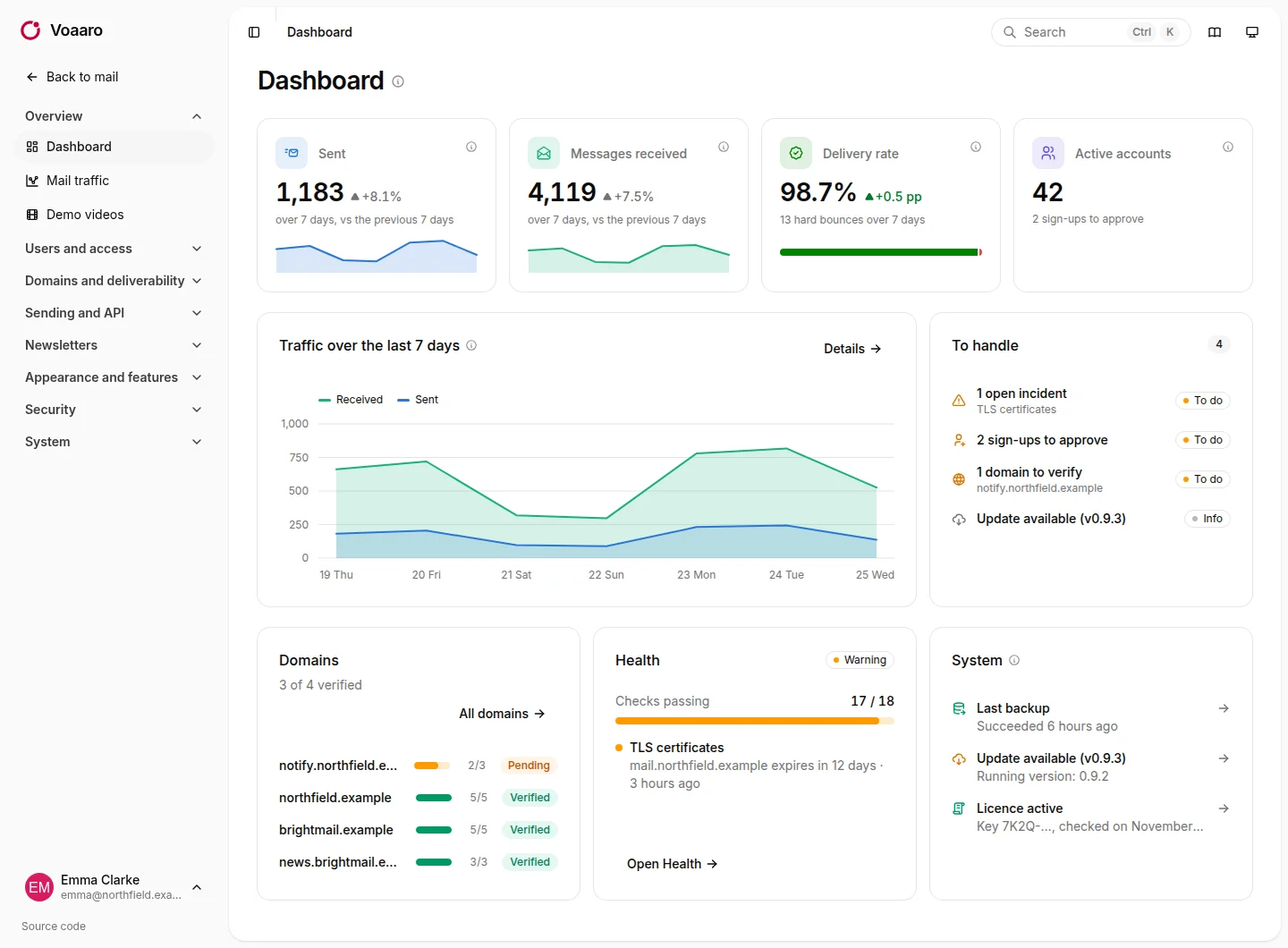
The administration lives at /admin on your instance (for example https://mail.example.com/admin). From the mailbox: Administration, in the sidebar or in your account menu. Only accounts holding at least one administration permission see it, and each person only sees the pages their roles allow. Two-factor authentication is required to administer.
Finding your way
- Sidebar: pages are grouped in collapsible sections, from most to least used: Overview, Plans and subscriptions (public service), Users and access, Domains and deliverability, Sending and API, Newsletters, Appearance and features, Security, System. Back to mail is at the top; your account and Source code at the bottom. The button left of the title collapses the menu.
- Search (Ctrl K, ⌘ K on a Mac, or the Search field top right): finds a page, a specific setting ("photo", "DKIM", "quota"…), an account or a domain, ignoring accents and case. Enter opens the result in place.
- Context: on pages that offer it (Domains and DNS, Appearance, Newsletters…), the picker top right limits the page to Entire instance, one organization or one domain.
- "i" tooltips: page titles, cards and fields are explained in the tooltip of the i icon next to them. It opens on hover, on keyboard focus (Tab) or, on a phone, with a tap.
Dashboard
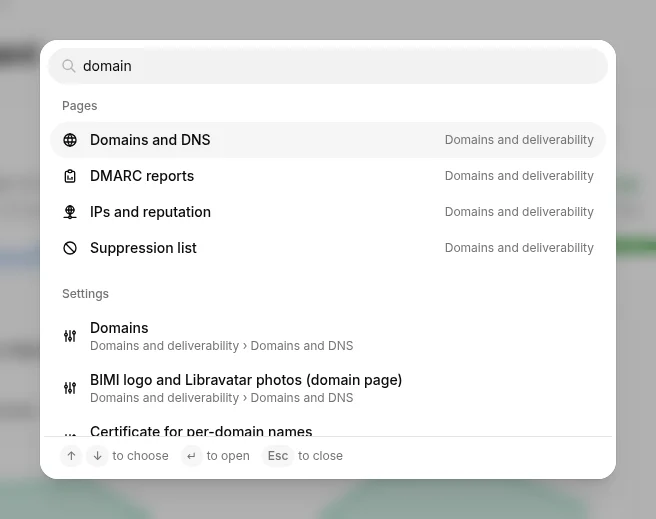
Overview › Dashboard sums up the instance:
- four tiles: messages sent and received over 7 days, delivery rate (share of recipients delivered among those whose delivery is finished, "-" while there are fewer than 10 deliveries), active accounts. Each change says what it is compared with ("over 7 days, against the previous 7 days"); it is green when the trend is good, red when it is bad (fewer bounces is green). Clicking a tile opens the detailed page;
- Traffic over the last 7 days, with Details → to Mail traffic;
- To handle: incidents, sign-ups to approve, domains to verify, update available;
- Domains, Health and System (last backup, update, licence), each linking to its page.
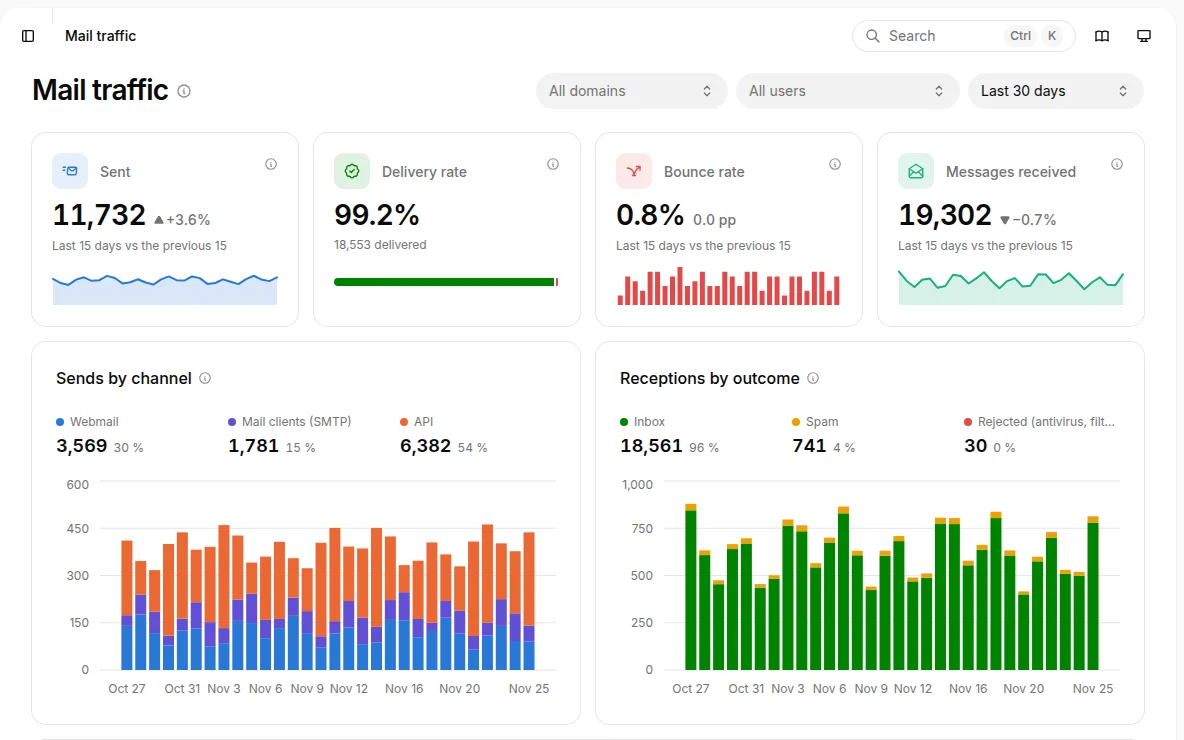
Overview › Mail traffic details sending and receiving: filters by domain, user and period (7, 30 or 90 days), sending by channel (webmail, mail apps over SMTP, API), receiving by outcome (inbox, spam, refused), bounces day by day and a per-user table; clicking a row filters the whole page on that account.
Lists: search, pages, actions
Every list in the administration (accounts, domains, keys, broadcasts, logs…) works the same way:
- Search filters the list; the filters (state, role, domain…) sit next to it. On long lists, search and sorting run on the server.
- View chooses the visible columns. A column header with arrows sorts on click.
- At the bottom: Rows per page (10, 25, 50 or 100) and page numbers.
- Row actions: the ⋯ button at the end of the row, or a right-click anywhere on the row (a long press on a phone). Both menus have the same actions.
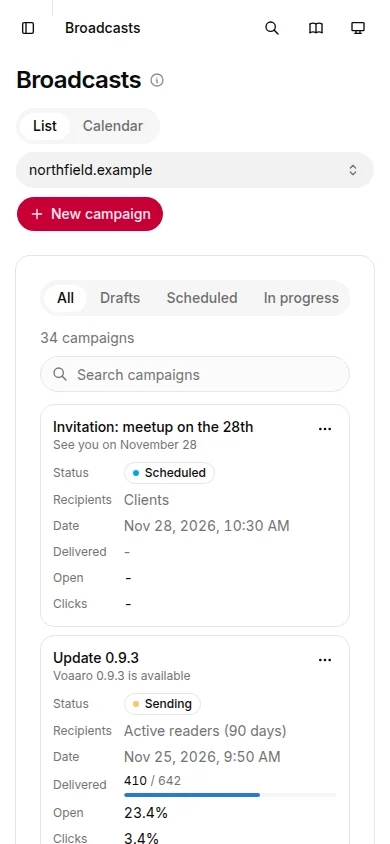
- On a narrow screen, or when the columns do not fit, each row becomes a card.
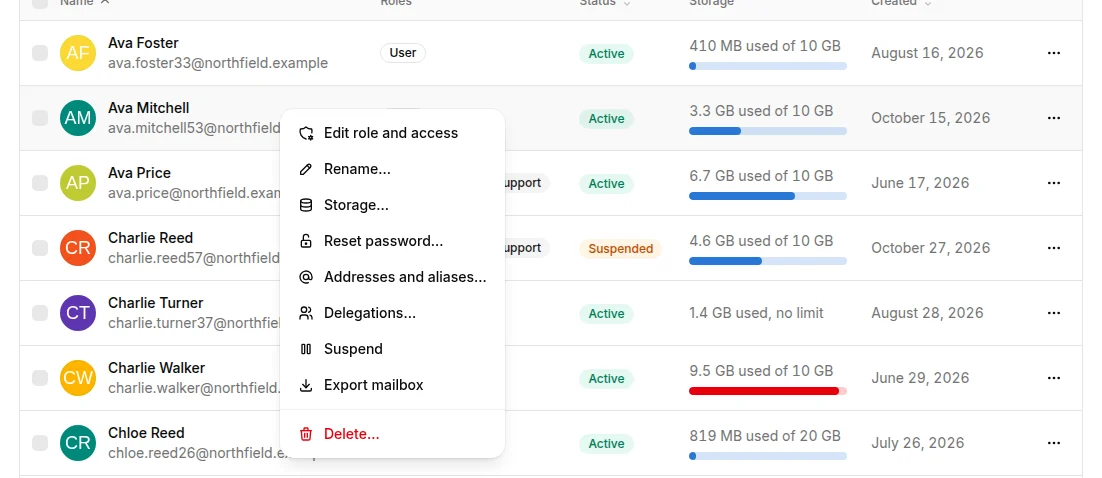
Searchable lists
Pickers that can hold many values (domains, accounts, organizations, segments, templates, time zones) are searchable lists: type a few letters to filter, then Enter or click. A cross clears the choice when it is optional.
Detail pages
An important object (organization, domain, subscriber, broadcast, email) opens on a page of its own, with its own address: you can bookmark it or send it to a colleague, and the browser's back button returns to the list. At the top: ← List, the state and the actions; below, the figures and then the details.
Demo videos
Overview › Demo videos has guided tours of Voaaro, by chapter, by use case and page by page, to watch on the spot or to show during a presentation.
A page that has its own video shows a film icon next to the "i" of its title: a click opens the video (full screen, subtitles when available, playback speed), with a link to all videos.