Users and access › Users lists the accounts of your domains. People only get in by invitation, through a link valid for 72 hours, or by signing up if you open sign-up (Sign-up and profiles).
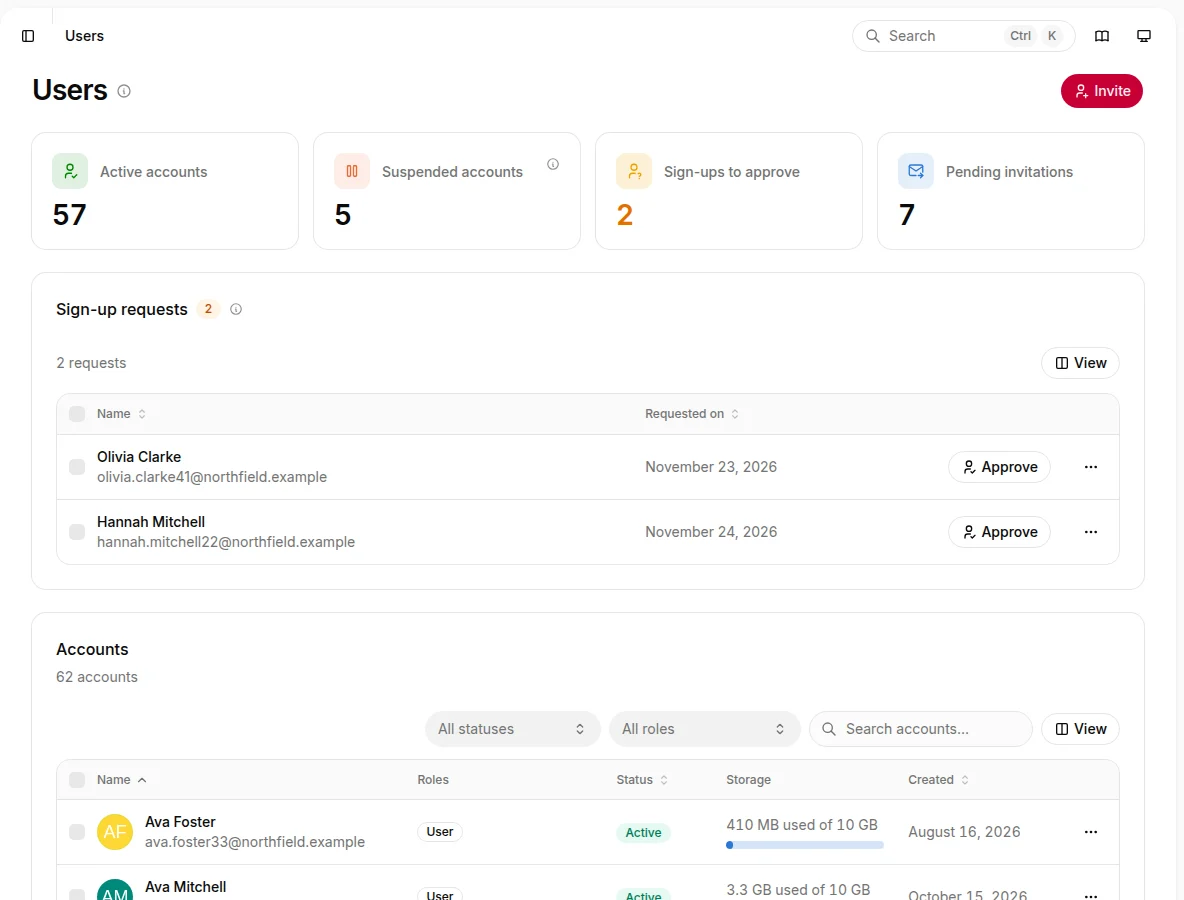
At the top of the page
Four tiles: Active accounts, Suspended accounts, Sign-ups to approve, Pending invitations. Clicking a tile filters the account list (active, suspended) or scrolls to the matching card.
Below, three cards:
- Sign-up requests (when sign-up requires approval): Approve, or Deny from the ⋯ menu; a denied address becomes free again.
- Accounts: name and address, roles, status, storage gauge, creation date, and the plan for a public service. All statuses and All roles filters, search, pages.
- Pending invitations: address to create, link recipient, validity; Send again (a new link replaces the old one and runs for another 72 hours), New link, Revoke.
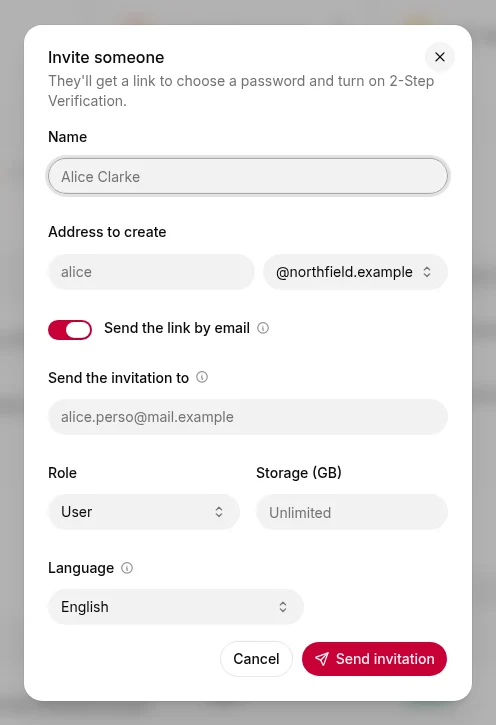
Invite someone
- Invite, top right.
- Name, Address to create (in one of your domains), Role (user, domain admin…), Storage (GB) (empty: unlimited) and Language of the invitation email and of the account.
- Send the link by email: Voaaro sends it to the address entered in Send the invitation to (an address the person already reads, personal or at another company), then Send invitation. With the switch off: Create link, shown once; pass it on yourself.
The person chooses their password through the link and, if they receive an administration permission, turns on two-factor authentication.
Actions on an account
⋯ menu at the end of the row, or right-click on the row:
| Action | Effect |
|---|---|
| Edit role and access | account type, roles, link to the permissions page (Roles and access) |
| Addresses and aliases… | extra addresses delivered to the same mailbox (Aliases) |
| Delegations… | who may read or write on behalf of this account |
| Rename… | the display name, used in the "From" header of the next messages |
| Storage… | the mailbox storage, in GB, or Unlimited |
| Reset password… | last resort: temporary password or one-time link and, if the account has it, two-factor reset |
| Suspend / Reactivate | no sign-in, sending or receiving while the account is suspended |
| Export mailbox | downloads an .mbox file, readable by Thunderbird and Apple Mail |
| Delete… | after an export: the mailbox and its messages are erased; the address is not reassigned for 90 days |
Nobody changes an account more powerful than themselves (a domain admin does not reset a super admin's password), nor their own role. Every action goes to the audit log.
To export and delete at the user's own request: Account export and deletion.
Migrate a whole organization
Users and access › Mailbox migration migrates a team's mailboxes in one go from Gmail (Google Workspace), Microsoft 365, Yahoo, iCloud or any IMAP server. It requires the right to manage accounts; a domain admin only migrates into mailboxes of their domains.
- Create the target accounts first (Invite). Each person creates an app password on their old email service, or your Google Workspace or Microsoft 365 administrator provides one.
- Choose the old email service: the server and port are filled in.
- Paste or load the mailbox list as CSV, one line per mailbox:
source_address,password,target_mailbox[,server](comma or semicolon; a header line is ignored; the optional server replaces the batch server for that line). - Test the connections checks each line (target mailbox known and within your reach, valid server) and tries each IMAP connection, four at a time.
- Start the migration: each mailbox becomes an import in the target account, with automatic folder mapping (inbox, sent, drafts, archive, labels; spam and trash only if you tick their options) and, if you want, fetching of new messages for 30 days.
The Migrations list shows the progress of each batch, and for each mailbox its state, imported messages and any error (password refused, server unreachable, mailbox full). Restart resumes a failed mailbox with a new password, where it stopped; Stop the migration cancels the mailboxes not finished yet (messages already imported stay). Each user also sees their import in Settings › Accounts and import. Passwords are encrypted on the server, never displayed, and erased as soon as the mailbox is migrated. Starting, stopping and each restart go to the audit log.
Microsoft 365 without passwords. When the server's Microsoft application is configured (see below) and the old service is Microsoft 365, the option Without passwords, through this server's Microsoft application replaces app passwords: enter the organization's Microsoft 365 tenant (contoso.onmicrosoft.com or its ID) and a source_address,target_mailbox list. On the Microsoft side, the organization's administrator consents to the application (application permission IMAP.AccessAsApp), then, in Exchange Online PowerShell, registers it (New-ServicePrincipal) and opens the mailboxes to migrate to it (Add-MailboxPermission … -AccessRights FullAccess). A domain admin can only migrate source addresses of their own domains this way.
The server's Microsoft application. At the bottom of the page, the Microsoft application card (right to manage the instance's security) registers the server's Entra ID application: each server has its own, since the redirect address is its own. The card gives the steps and the exact redirect address to copy. In short, on entra.microsoft.com: new app registration, accounts in any organizational directory and personal Microsoft accounts; "Web" redirect URI https://<your server>/microsoft/retour; delegated permissions IMAP.AccessAsUser.All (Office 365 Exchange Online), Contacts.Read, offline_access, openid and email (Microsoft Graph); a client secret. Paste the application ID and the secret: the secret is encrypted and never shown again. Without an application, users are offered nothing and the app password stays available.